
What Data Should You Move When Switching EPOS Providers?
Switching EPOS providers? Learn which products, barcodes, stock and sales records to move, and how to test your new till before going live.
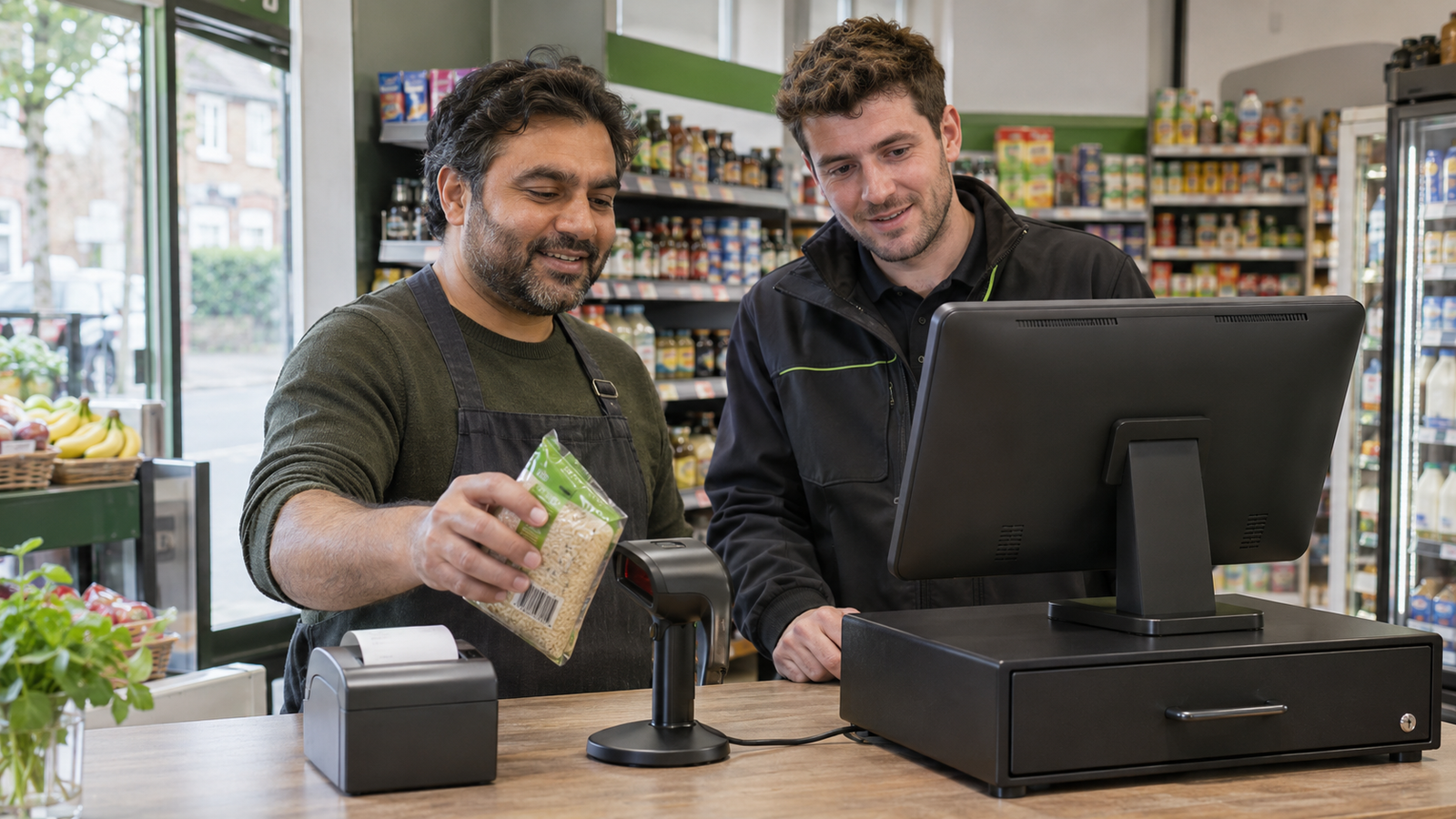
When switching EPOS providers, move the data your team needs to trade on day one. For most UK shops, that means product names, barcodes, selling prices, VAT settings and current stock quantities. For cafés and takeaways, it also means menus, modifiers and the options staff use to build orders. Export your sales history separately, and check which records the new system can import and which you’ll need to keep in an archive.
Start with a test import while your old till is still running. Then agree when to take the final stock figures so the new system accounts for anything you sell, receive or return before the switch.
What data should you move to your new EPOS?
Products, barcodes and prices
Your product catalogue is the first thing to check. Ask your old provider how to export it and ask your new provider for their import template. Seeing both files early gives you time to match fields and find gaps.
For a retail shop, check that the export includes:
- Product names and categories
- Barcodes and internal product codes, often called SKUs
- Selling prices and cost prices, where used
- VAT settings and units of sale
- Product variants such as sizes, flavours or pack quantities
- Supplier references and reorder levels, if you use them
Keep an untouched copy of the original export. When preparing a CSV, import barcode and SKU columns into your spreadsheet as text. A spreadsheet can drop leading zeroes or change long codes to scientific notation, which can break the match between a scanned item and its product record. Square Support Centre - United Kingdom
Check products that come in singles and multipacks. If your old till has separate records for a single can and a six-pack, both need the correct barcode, price and stock handling in the new system.
Stock quantities by location
Ask whether stock quantities come in the product export or need a separate report. If you have two shops or hold stock in a separate location, check whether the old system can export quantities for each location. A combined figure tells you how much you own across the business, but it won’t tell staff where to find it.
Use a recent export for the trial, then agree how to bring stock up to date at switchover. A delivery that arrives between the test and launch can change dozens of opening balances. Count a selection of fast-moving or high-value items and compare the physical count with the new till.
Menus, modifiers and offers
A café needs more than a list of dishes and drinks. The till also needs the choices staff make when placing an order, such as drink sizes, alternative milks and extra shots. A takeaway may need meal deal options, paid extras and different prices for collection and delivery.
Ask what the provider can import and what needs to be rebuilt. Then test one complete order. For a café, that could be a large latte with oat milk and an extra shot. Check that the new till charges the correct amount and that every option appears on the order ticket.
Retailers should do the same with promotions. Ring up a qualifying multi-buy offer and then remove one item. Check that the discount updates as expected.
Gift vouchers, loyalty and open orders
Before launch, make a list of anything customers can still redeem or collect. Include outstanding gift vouchers, loyalty balances, deposits and orders that have been paid for but haven’t been collected. Ask how staff will find and handle those records after the switch.
If the new till can’t import voucher balances directly, agree on a way for staff to verify and record redemptions during the transition. Test the process before a customer brings a voucher to the counter.
Which records should you export and keep?
Export the old reports you still rely on for bookkeeping, returns or looking up past sales. Depending on how you trade, that may include:
- Sales and refunds with dates, receipt references and payment methods
- Daily closing reports and VAT summaries
- Stock movement and stock valuation reports
- Outstanding orders, voucher balances and deposits
- Supplier records and purchase history
Ask whether old sales can be imported as searchable transactions, imported as summaries or accessed separately from an archive. Those options affect what staff can do when a customer returns an item bought before the switch. Agree how to look up the original sale and how to process and record the refund.
If you export customer or loyalty records, agree which fields the new system actually needs and how to transfer them securely. Before the old account closes, open the files you’ve saved and make sure someone on the team can find a specific receipt, refund or daily total.
How do you test an EPOS data migration?
Choose a sample that reflects what you actually sell. A convenience shop might pick a single drink, a multipack, an item sold by weight and two products in a multi-buy offer. Include a barcode starting with zero if you have one, and pick items with different VAT settings.
After importing the sample, ask the person who normally works the till to run these checks:
- Scan real products. Check that each barcode opens the right item and that the product name, price and unit of sale match.
- Run a sale and a refund. Check the receipt, stock movement and end-of-day report. If the card machine is integrated, check that it receives the right amount.
- Test an exception. Try a discount, a partial refund, a voucher redemption or an order with paid extras. Pick the situation your staff are most likely to see.
- Review the import results. Check which records were accepted or rejected. Agree who will fix duplicates, missing prices and any rows that need manual attention.
Once the full catalogue is loaded, compare totals against the source export and spot-check several items outside the original sample. A matching product count can still hide incorrect prices or variants assigned to the wrong item.
What should you do on switchover day?
Pick a quiet period and agree when the old till will record its last sale. Write down who will take the final export, load the opening stock and confirm the new till is ready.
Before closing the old till, finish the shift and save the closing report. Capture any stock changes or open orders since the trial export. Before opening on the new till, scan a few common products, check the opening stock and run a test sale through the agreed process. Confirm that staff know where to find old receipts and whom to contact if a price, barcode or stock quantity looks wrong.
For example, a shop might test the import on Tuesday and switch after closing on Sunday. If it receives a drinks delivery on Friday, it should use Sunday’s closing stock figures or account for all stock movements since Tuesday. That keeps the opening stock aligned with what’s on the shelf when the shop reopens.
Frequently asked questions
Can I move all my old sales into a new EPOS system?
It depends on what your current provider can export and what the new system accepts. Ask for a sample export and confirm whether individual sales, receipts and refunds will be searchable. If detailed transactions will stay in an archive, test that staff can find an old sale by date or receipt number.
Can I keep using my existing barcode scanner?
Possibly. Check the scanner model and connection type with your new provider. Then test the actual scanner against products from your imported catalogue. That checks both the hardware and whether your barcode data came across intact. Explore Zivaro’s EPOS hardware.
Does Zivaro help move products or menus?
Yes. Zivaro helps businesses switching from another provider and can load products or menus. Share a sample export and tell us which records matter to your business so we can review what can be moved before you set a switch date. Talk to Zivaro about switching EPOS. zivaro.uk
More EPOS guides
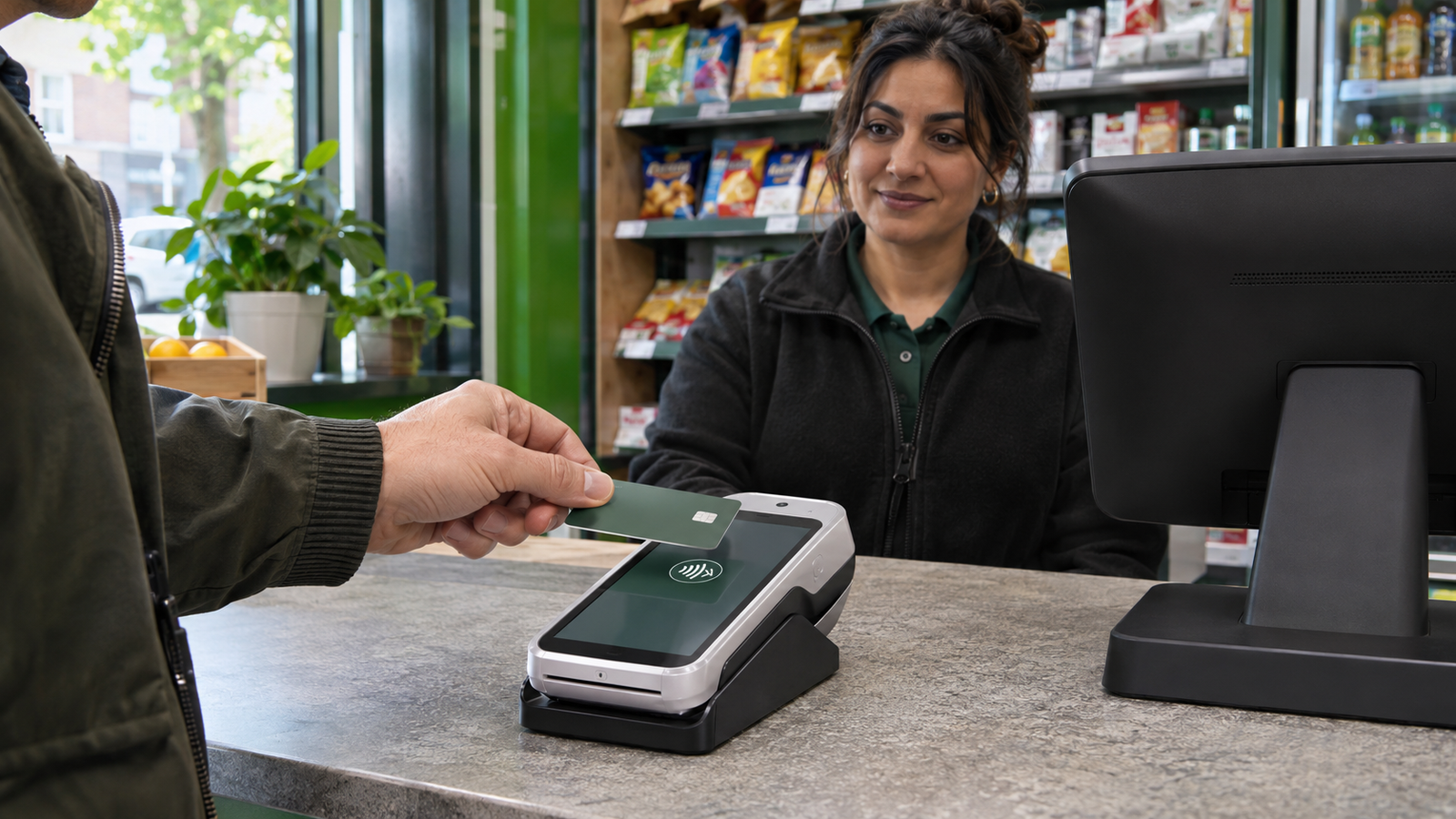
Integrated vs Standalone Card Machines: Which Suits Your Business?
Should your card machine connect to your EPOS till or run on its own? Zivaro compares integrated and standalone card machines through three everyday tasks: taking a payment, issuing a refund and checking takings at closing. See where integration can save your team time and when a standalone terminal may suit your business.
Read article
Black Friday Sale 2026: How UK Independent Shops Can Run a Profitable Promotion
Plan a Black Friday sale that works for your shop. Learn how to price a promotion, prepare stock and measure what the event earned.
Read article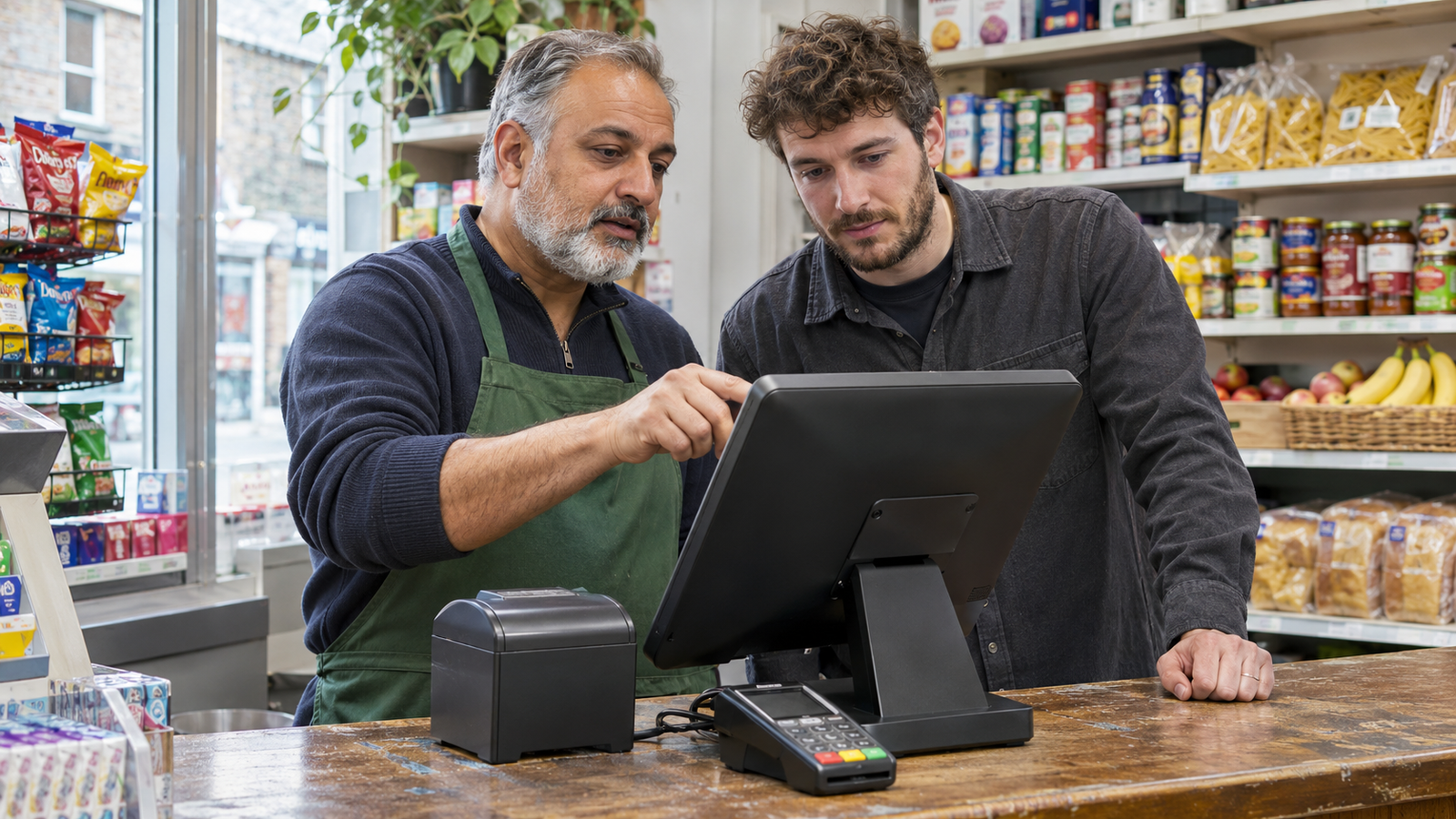
Can You Switch EPOS Providers and Keep Your Existing Till Hardware?
You may be able to reuse your till, scanner or printer when you switch EPOS providers. Here’s how to check what will work before you buy
Read article