
Can You Switch EPOS Providers and Keep Your Existing Till Hardware?
You may be able to reuse your till, scanner or printer when you switch EPOS providers. Here’s how to check what will work before you buy
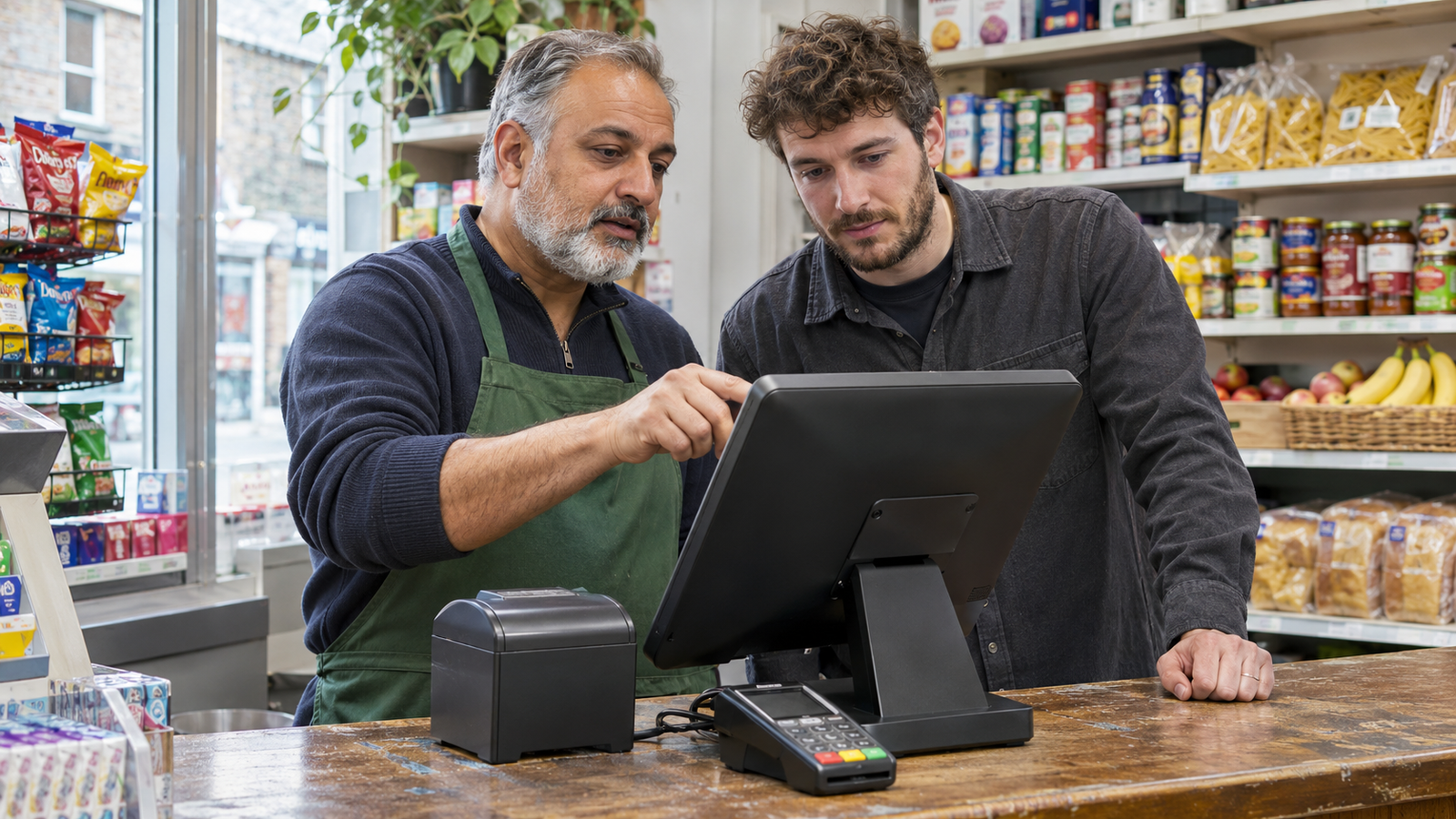
Yes, you can often keep some of your existing till hardware when you switch EPOS providers. A barcode scanner or cash drawer may work with the new setup, while the touchscreen till, receipt printer and card machine each need their own compatibility check. The answer depends on the exact models, the new software and whether you own or rent the equipment.
If you run a shop, café or takeaway, start by making a list of what is on the counter. Send the model numbers to the new provider and ask which devices they can support. Then test a full sale and refund with the proposed setup before you agree to a switch.
Which EPOS hardware can you usually keep?
Touchscreen till
First, check whether the new EPOS software supports your till’s operating system and hardware. Two tills can look almost identical on the counter and run different versions of Windows or use different touch drivers. Ask whether the provider can install its software on your exact model and help if the screen, ports or touch input cause problems later.
A Windows till in good condition is worth checking before you price a replacement. Send the provider the model number, operating system version and photos of the ports. Ask whether the till can be tested with the new software and the peripherals you want to keep.
Barcode scanner
A scanner that sends barcode digits as keyboard input can be a good candidate for reuse. Test it at the checkout using the products your staff actually scan. In a convenience shop, that might include a bottle of milk, a multipack and a short barcode on a packet of chewing gum.
Check that each scan finds the correct product and adds it to the basket once. If you sell weighed or pre-packed goods with barcodes that contain a weight or price, ask the provider to test those labels specifically.
Receipt printer and cash drawer
Give the new provider the printer model and tell them how it connects, such as USB or Ethernet. A printer can receive a test page and still behave differently when the till prints a real receipt. Check the layout, automatic paper cut and any extra copies you use.
If your cash drawer plugs into the receipt printer, test the drawer and printer together. Run a cash sale and check that the drawer opens at the right point. Then run a card sale and check that the drawer follows your chosen settings. For cafés and takeaways, test the kitchen printer separately, including where an order goes if you have more than one prep station.
Card machine
A card machine can accept payments on its own and still need a specific integration to receive the amount from the new till. Ask about your terminal model, payment provider and contract together. Your new EPOS provider can tell you which integrations it supports. Your payment provider can confirm the terms for keeping, changing or returning the terminal.
For example, a takeaway might be able to keep its touchscreen till, receipt printer and cash drawer but need a different terminal to send the total directly from the till. Ask for a quote that shows both the cost of keeping your existing payment setup and the cost of using compatible integrated payments.
How do you check compatibility before buying?
Make a short list with one line for each device. Include the make, model, connection type and whether you own, rent or lease it. Photograph any model labels you can safely reach. Ask for a written answer on which devices can be reused and who will support them after installation.
Use the demo to run a transaction your staff know well. A grocery shop might scan a basket with a promotion, send the total to the terminal, print the receipt and refund one item. A café might add oat milk to a coffee, send an order to the kitchen, split the bill and check the payment report. If the provider can test on a unit that matches yours, ask them to do so. Otherwise, arrange a test on your counter before the switchover.
Compare the two quotes over the same period. Include installation, any adapters or upgrades, warranty, support, terminal rental and payment fees. Reusing a printer can cut your upfront cost. A newer printer may make financial sense if the existing one jams regularly and takes staff away from serving.
What should you move from your old till?
Start with the information you need to trade on day one. For a retailer, that usually means product names, barcodes, prices, VAT settings and opening stock quantities. For a café, it might include menus, modifiers, takeaway prices and kitchen routing. Ask the new supplier which fields it can import and how it handles duplicates or missing data.
Check outstanding gift vouchers, open orders and loyalty balances separately if you use them. Ask how staff will find a sale made on the old system if a customer comes back for a refund after the move. Keep the reports your business needs, and confirm how long you will have access to the old provider’s portal after cancellation.
Run a trial import with a small batch first. Pick items that expose mistakes a quick scroll might miss. For example, include two pack sizes of the same product and a barcode that starts with zero. Look up each item on the new till and check the price and barcode against the original.
How do you plan the switchover?
Choose a quieter time and agree who will be available for support. Decide when staff will stop entering sales on the old till, take the final reports or stock figures, and begin trading on the new system. If you have several tills, consider testing one checkout first so you can catch problems before moving the rest.
Before you open, run a cash sale, a card payment, a receipt and a refund. For hospitality, send an order through every kitchen route you use. At close of trade, check that staff can find the first day’s transactions and reconcile the till against the card terminal. Agree in advance what your team will do if a payment or printer fails during the first shift.
How Zivaro and Switch & Save can help
Zivaro is the EPOS and payments brand of Switch&Save Business Services Ltd, which Companies House lists as active under company number 15051352. Zivaro offers help with product or menu migration, configuration and staff training when you move from another provider. About Zivaro · Companies House
Switch & Save also publishes details of its own Windows-based retail EPOS software and lists the K10 EPOS terminal as compatible. If you already have a different till, send the model number to the team so they can help you check your options. Switch & Save EPOS software
Frequently asked questions
Can I change EPOS software without buying a new till?
Possibly. Your current till needs to support the new software, and you need the ability to install it. Ask the new provider to check your hardware and confirm who will support it in day-to-day use.
Can I change EPOS providers and keep my card machine contract?
That depends on your payment agreement and the way you want to take payments. Ask your payment provider about the contract and the EPOS supplier about whether the terminal can receive sales totals directly from the till.
Can I keep my old receipt printer?
You may be able to reuse it if the new EPOS supports its model and connection. Test a live receipt and, if the cash drawer connects to the printer, test a cash sale as well.
Thinking of changing tills? Book a free Zivaro EPOS demo or call 0333 038 9707. Bring your hardware model numbers and a typical sale so we can talk through what you could keep and what the new setup would need.
More EPOS guides
What Data Should You Move When Switching EPOS Providers?
Switching EPOS providers? Learn which products, barcodes, stock and sales records to move, and how to test your new till before going live.
Read article
Black Friday Sale 2026: How UK Independent Shops Can Run a Profitable Promotion
Plan a Black Friday sale that works for your shop. Learn how to price a promotion, prepare stock and measure what the event earned.
Read article
Is EPOS a Good POS System for UK Small Businesses?
EPOS can bring checkout, stock and sales reports together. Find out when it’s worth the cost and what to test before choosing a till for your shop, café or takeaway.
Read article